| [PS-Youtube id=”VbXRDtfhTP4″ w=”320″ h=”206″] | Abstract: In the first part of this tutorial i have shown how to add a simple material to a model in Blender and customize its specularity and color. In this excursus i show how you can get a similar result in your 3D online world (in OpenSim for example or similar). |
Light setup |
|
Note: The object appears very dark because we have no light in the scene yet, except the environment lighting which still exists with Midnight Light Setting. |
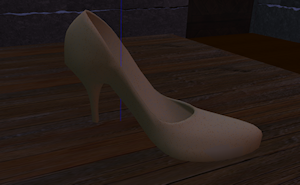 Expert note: The model currently has no UV Map. Hence any attempt to add a texture to the object in your 3D world will just colorise the object with a unique color. Expert note: The model currently has no UV Map. Hence any attempt to add a texture to the object in your 3D world will just colorise the object with a unique color. |
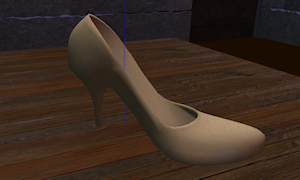
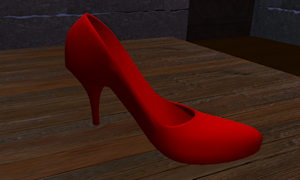
Add Light & Color |
|
|
 |
|
 |
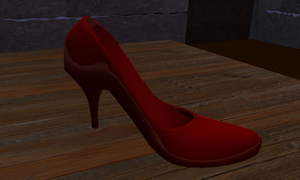
Add Specular reflection |
|
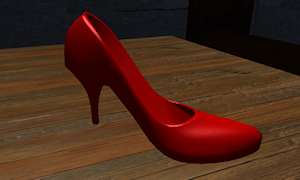
Note that the specular reflection is dependent from the viewing angle and of course from the number of light sources. However it has become common practice to “bake highlights” into the object textures. The downside of this approach is: Baked Highlights are static and may not fit to the light settings in your scene from every angle and at any time of the day.
|
 |
Since Viewer 2 we have an alternative:
|
 |
Chapter summary |
|
Here is what we did so far:
|
You have3 options to proceed from here depending on your personal interests:
|